
How to Watch YouTube on CarPlay with TDS in iOS 26
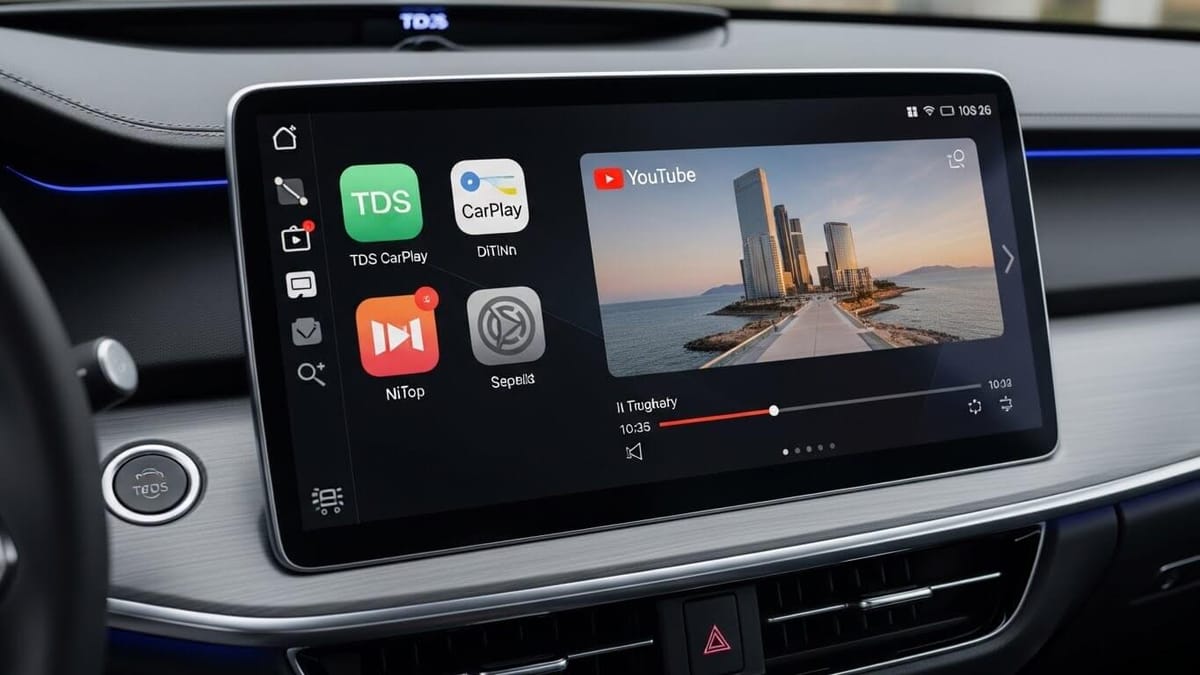
Are you tired of being limited to Apple's approved apps while driving? If you're a car owner who loves streaming YouTube videos during road trips or while parked, you've probably felt the frustration of CarPlay's restrictions. The good news? With the release of iOS 26 and innovative solutions like TDS CarPlay and CarTube, you can finally enjoy YouTube content directly on your car's display.
In this comprehensive guide, we'll explore how TDS CarPlay works with iOS 26, walk you through installation steps, compare it with CarTube alternatives, and show you exactly which iPhone models and iOS versions support these game-changing solutions. Whether you're new to CarPlay customization or looking for the best way to stream YouTube videos on the go, this article has everything you need.
What is TDS CarPlay and Why Car Owners Love It
Understanding TDS CarPlay Technology
TDS CarPlay is an open-source solution developed by Thomas Dye that enables iPhone users to watch YouTube and other video content directly through their CarPlay interface. Unlike Apple's restrictive native CarPlay experience, TDS CarPlay creates a bridge between your iPhone's streaming capabilities and your car's display system.
The project, available on GitHub, has gained massive popularity among car enthusiasts who want more control over their in-car entertainment. Here's what makes it special:
- Native YouTube integration for CarPlay displays
- No jailbreak required for most installations
- Support for multiple video streaming platforms
- Regular updates for new iOS versions
- Open-source code for transparency and security
TDS CarPlay vs Traditional CarPlay: Key Differences
Traditional CarPlay limits you to Apple-approved apps like Apple Music, Apple Podcasts, and navigation tools. TDS CarPlay breaks these boundaries by allowing:
- Full YouTube access with search functionality
- Video playback while parked (safety-first approach)
- Customizable interface elements
- Multiple resolution options for optimal viewing
- Picture-in-picture capabilities on supported vehicles
iOS 26 Compatibility: Which iPhones Support TDS CarPlay
Supported iPhone Models and iOS Versions
TDS CarPlay compatibility depends on both your iPhone model and iOS version. Here's the complete breakdown for iOS 26:
Fully Supported Devices:
- iPhone 17 series
- iPhone 16 series
- iPhone 15 series
- iPhone 14 series
- iPhone 13 series
- iPhone 12 series
- iPhone 11 series
iOS 26 Specific Features: The latest iOS 26 update brings enhanced stability for TDS CarPlay installations, improved video buffering, and better integration with CarPlay's native interface. Apple's security updates in iOS 26 require slightly different installation methods compared to earlier versions, but the core functionality remains intact.
What Doesn't Work with TDS CarPlay
It's important to understand current limitations:
- iPhones older than iPhone 11 may experience performance issues
- iOS versions below 24.0 lack critical compatibility features
- Some car manufacturers' proprietary systems may block third-party CarPlay modifications
- Wireless CarPlay installations require additional troubleshooting
- Video playback while driving is disabled for safety (enabled only when parked)
Step-by-Step Installation Guide for TDS CarPlay on iOS 26
Prerequisites Before Installation
Before installing TDS CarPlay on your iOS 26 device, ensure you have:
- AltStore or Sideloadly installed on your computer
- USB cable for connecting your iPhone
- Apple ID credentials (for app signing)
- Latest TDS CarPlay IPA file from the official GitHub repository
- 15-20 minutes of uninterrupted time
Installing TDS CarPlay Using AltStore (Recommended Method)
Step 1: Download and Setup AltStore
- Install AltStore on your Mac or Windows PC
- Connect your iPhone via USB
- Open AltStore and sign in with your Apple ID
- Enable "Developer Mode" in iPhone Settings
Step 2: Download TDS CarPlay
- Visit the official TDS CarPlay GitHub page
- Download the latest
.ipafile compatible with iOS 26 - Save it to an accessible location on your computer
Step 3: Install via AltStore
- Open AltStore on your computer
- Click "Install IPA" and select the TDS CarPlay file
- Wait for the signing and installation process (typically 3-5 minutes)
- The app will appear on your iPhone home screen
Step 4: Configure CarPlay Settings
- Open iPhone Settings > General > CarPlay
- Select your vehicle
- Enable TDS CarPlay from the available apps list
- Customize app positioning on your CarPlay interface
Alternative Installation Method: TrollStore (For Supported Devices)
For iPhone models running iOS 24.0-25.5, TrollStore offers permanent installation without the need for weekly re-signing:
- Install TrollStore using your preferred method
- Download TDS CarPlay IPA file
- Share the IPA to TrollStore
- Tap "Install" and wait for completion
- Configure CarPlay permissions in Settings
Important Note: iOS 26 has tightened security measures, so TrollStore compatibility may vary. Always check the latest TrollStore documentation for iOS 26 support status.
CarTube and CarTube Plus: Alternative YouTube Solutions for CarPlay
Other Methods to Watch YouTube on CarPlay
Beyond TDS and CarTube solutions, consider these alternatives:
1. Screen Mirroring Apps
- CarBridge (requires jailbreak)
- InCar (limited functionality)
- NGXPlay (compatibility varies)
2. Built-in Browser Methods
- Some newer car systems allow browser access
- Quality and stability can be inconsistent
- Not officially supported by Apple
3. Dedicated CarPlay YouTube Apps
- Emerging App Store alternatives
- Limited availability due to Apple restrictions
- Often removed after policy violations
Safety Considerations and Best Practices
Safe Usage Guidelines for YouTube on CarPlay
While TDS CarPlay and CarTube solutions enable YouTube access, safety must remain your top priority:
When Parked Only:
- Video playback should only occur when your vehicle is in park
- Most solutions automatically disable video when the car is in motion
- Use audio-only mode for YouTube content while driving
Minimize Distractions:
- Set up playlists before starting your journey
- Use voice commands for video selection when available
- Position your screen to avoid taking eyes off the road
Legal Considerations:
- Check local laws regarding screen usage while driving
- Some jurisdictions prohibit visible video screens in driver's view
- Passenger-side screens may have different regulations
Troubleshooting Common Issues
App Not Appearing in CarPlay:
- Restart both your iPhone and car's infotainment system
- Reconnect USB cable or re-pair Bluetooth
- Check that TDS CarPlay has CarPlay permissions enabled
Video Playback Issues:
- Verify stable internet connection (cellular or hotspot)
- Clear app cache and restart
- Update to the latest TDS CarPlay version
Frequent Crashes:
- Ensure iOS 26 is fully updated to the latest version
- Reinstall the app using AltStore
- Check for conflicting CarPlay apps
Frequently Asked Questions (FAQ)
Is TDS CarPlay legal to use?
Yes, TDS CarPlay is legal to install and use on your personal iPhone. However, modifying your device may void Apple's warranty. Additionally, watching videos while driving may violate local traffic laws, so always ensure you're parked before viewing content.
Will TDS CarPlay void my iPhone warranty?
Installing third-party apps via sideloading (AltStore, Sideloadly) does not void your iPhone warranty. However, if you use jailbreaking methods, this may affect warranty coverage. Standard sideloading is a sanctioned iOS feature.
Can I use TDS CarPlay wirelessly?
Yes, if your car supports wireless CarPlay, TDS CarPlay will work wirelessly after proper installation and configuration. Some users report better stability with wired connections, especially for video streaming.
Does TDS CarPlay work with all cars?
TDS CarPlay works with any vehicle that supports standard Apple CarPlay functionality. Compatibility issues are rare but can occur with certain proprietary systems from manufacturers like Tesla or Rivian, which use custom interfaces.
How often do I need to re-sign the TDS CarPlay app?
When using AltStore, you'll need to refresh the app every 7 days. TrollStore installations (when compatible with iOS 26) provide permanent installation without re-signing requirements.
Conclusion
Watching YouTube on CarPlay in iOS 26 is no longer a distant dream—it's an achievable reality with solutions like TDS CarPlay and CarTube Plus. Whether you choose the free, open-source route with TDS CarPlay or opt for the streamlined experience of CarTube Plus, you now have multiple options to enhance your in-car entertainment.
Key Takeaways:
- TDS CarPlay offers free, open-source YouTube integration for iOS 26
- Installation requires AltStore or TrollStore with moderate technical knowledge
- All solutions work best when your vehicle is parked
- iPhone 11 and newer models offer the best compatibility
Ready to transform your CarPlay experience? Start by downloading TDS CarPlay from GitHub or explore the premium features at cartubeplus.com for a ready-to-use solution. Remember to always prioritize safety and check your local regulations before installing any CarPlay modifications.